Link to a node in another mindmap
Use this when the item you want to point at already belongs to a different mindmap and you want to record the relation here without dragging the item out of where it lives. For what actually gets written, see cross-mindmap-links-reference.md.
Steps
- Open the add-link form for the item the link starts from, from any of its entry points (links-add-howto.md).
- Check which mindmap the form is writing to, because both the link and the stub land there. It's the mindmap named after "Mindmap:" at the top of the panel, or the one you picked from the library context menu. The form only asks you, under "Add to mindmap:", when the item isn't in a mindmap yet; pick one and click "Continue".
- Choose the link type, and fill in Name and Direction if you want them.
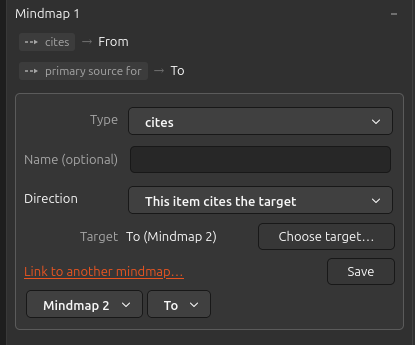
- Click "Link to another mindmap…" instead of "Choose target…".
- Pick the other mindmap in the first dropdown. Its member nodes load into the second one.
- Pick the node in the second dropdown. The chosen target appears next to the buttons as the node's name with the mindmap's title in parentheses, and "Save" becomes available.
- Click "Save".
The graph for the mindmap you were editing now shows the borrowed node with a dashed border, connected by the link you authored.
If the button reports "No other mindmaps yet."
Then the library holds only the mindmap you're editing. Create the second one first, from the mindmap tab's sidebar (mindmaps-manage-howto.md), and add the target item to it.
If the node you want is not in the second dropdown
The dropdown only lists nodes that belong to the other mindmap, and three things can leave an entry out:
- The item isn't on that mindmap at all. Add it there first (library-menu-howto.md), then come back.
- The node in that mindmap is itself borrowed from a third mindmap. Borrowed nodes don't get lent on, so link to the mindmap that actually owns the node instead.
- The node stands for the item you're linking from. Borrowing it would put one item on the graph twice, so it's left out. If that empties the dropdown entirely, "Save" stays disabled.
Undoing one
Either remove the link from the Mindmaps section with its x icon (tooltip "Remove link"), or remove the stub node itself with the − icon (tooltip "Remove from mindmap") while the stub is selected on the graph. Removing the stub takes every link touching it along with it. Neither one touches the other mindmap.